Nothing is being removed.
Passkeys are an optional modern sign-in method. Your current Massey sign-in methods continue to work unless Massey advises otherwise.
Support for Microsoft-provided SMS and Voice based Multi-Factor Authentication (MFA) will be retired in February 2027. After February 2027 passkeys will be the default sign-in experience.
Overview
A passkey is a secure digital credential stored in Microsoft Authenticator on your phone. It lets you approve sign-in using your device unlock method such as fingerprint, face unlock or PIN.
What it replaces
For supported sign-ins, a passkey can replace typing your password and entering an MFA code.
How it protects you
Passkeys use cryptographic keys. Your private key stays on your device and is not typed, sent or reused on fake sign-in pages.
Where it works
Use your passkey with Massey systems that use Microsoft 365 or Massey Single Sign-On, including email, Teams and SharePoint.
Set up your passkey
Before you begin
Make sure your phone is ready before setting up a passkey.
- Install the latest version of Microsoft Authenticator.
- Use a supported device: iOS 17 or later, or Android 14 or later.
- Turn on Bluetooth if you need to sign in on another device, such as a laptop or desktop computer.
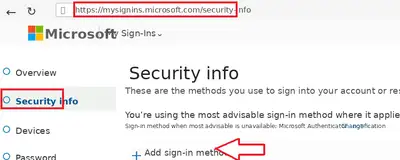
Step 1: Open your Security info page
Go to Microsoft My Sign-ins > Security info and sign in with your Massey account.
Step 2: Add a new sign-in method
On the Security info page, select 'Add sign-in method'.
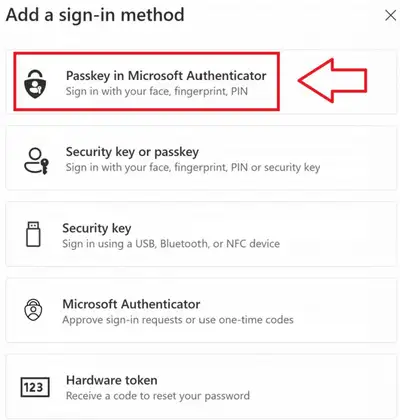
In the Add a sign-in method window, choose 'Passkey in Microsoft Authenticator'.
Step 3: Verify your identity
Complete your current MFA verification if prompted, then select 'Next'.
Step 4: Create the passkey in Microsoft Authenticator
On your phone, open Microsoft Authenticator, select your Massey work or school account, then select 'Create a passkey'. Follow the in-app instructions and keep the app open until setup is complete.
Step 5: Complete device-specific prompts
iPhone or iPad
- Open 'Settings'.
- Select 'General'.
- Go to 'AutoFill & Passwords'.
- Turn on 'AutoFill Passwords and Passkeys' if needed.
- Enable 'Authenticator', then return to Microsoft Authenticator.
Android
- Follow the on-screen prompts in Microsoft Authenticator.
- Enable any requested screen lock, permissions or passkey provider settings.
- Return to Microsoft Authenticator to finish setup.
Step 6: Finish and test
Return to your browser and select 'Next'. After registration, test your passkey by signing in to a Massey Microsoft 365 service.
If you are prompted to name the passkey, use a clear name such as 'Massey iPhone' or Massey Android'.
Managing passkeys
You can view, rename or remove passkeys from your Security info page. Your other sign-in methods remain available.
View or remove a passkey
View or remove a passkey
- Go to Microsoft My Sign-ins > Security info.
- Sign in with your Massey account.
- Find your registered passkey.
- Use the available management option to view, rename or remove it.
Getting a new phone
Getting a new phone
Set up Microsoft Authenticator and register a new passkey on your new phone before removing the passkey for your old phone.
If your phone is lost or stolen
If your phone is lost or stolen
- Use another registered sign-in method if you have one available.
- Remove the passkey for the lost or stolen device from your Security info page.
- Register a new passkey on your replacement device.
- If you cannot access your account, contact the ITS Service Desk.
Security and privacy
Security and privacy
- Your fingerprint or face data stays on your device.
- Massey and Microsoft do not receive your biometric data.
- The passkey uses a cryptographic response to confirm the sign-in.
- Remove old passkeys you no longer use, especially for devices you no longer have.
Sign in without using a passkey
If you do not want to use a passkey, or the passkey option is not available, choose another sign-in method from the Microsoft sign-in screen.
Use another method during sign-in
- Start signing in to the Massey service.
- When prompted for a passkey, choose 'Other ways to sign in' or 'Sign-in options'.
- Select an available method, such as password plus Microsoft Authenticator code or Authenticator approval.
- Complete the prompt to finish signing in.
Use password + MFA
Password plus Microsoft Authenticator remains available unless Massey advises otherwise. Use this if your passkey is unavailable, your phone cannot complete passkey sign-in, or you need to access a service that does not present the passkey option.
When to use another method
- You do not have your passkey device with you.
- Your phone battery is flat.
- Bluetooth or cross-device sign-in is not working.
- You are using a system that does not show the passkey option.
- You need to reset or re-register your passkey.
If you have any issues with MFA, contact the ITS Service Desk.
Contact IT services
IT Services Auckland
IT Services Auckland
- Phone
+64 9 414 0800 extension 82111
- Location
Physical and courier address
Information Technology Services
Room 1.42
Massey Business School Building
Gate 1
151 Dairy Flat Highway
Albany 0632
Auckland 0632
New ZealandPostal address
Information Technology Services
Massey University
Private Bag 102904
North Shore
Auckland 0745
New Zealand
IT Services Manawatū (Palmerston North)
IT Services Manawatū (Palmerston North)
- Phone
+64 6 356 9099 extension 82111
- Location
Physical and courier address
Information Technology Services
Massey University
Riddet Road
Palmerston North 4410
New ZealandPostal address
Information Technology Services
Massey University
Private Bag 11 222
Palmerston North 4442
New Zealand
IT Services Wellington
IT Services Wellington
- Phone
+64 4 801 5799 extension 82111
- Location
Physical and courier address
Information Technology Services
Massey University
Block 5, Level A, Room16 (5E18)
Entrance A, 63-65 Wallace Street
Mt Cook
Wellington 6021
New ZealandPostal address
Information Technology Services
Massey University
PO Box 756
Wellington 6140
New Zealand